Smart Switch App File Transfer
- 0.0
- Rating
- 100.00K
- Installs
- Free
- Price
 Analysis by App-foxy
Moving to a new phone is usually less about buying the device and more about getting your personal life across safely. Photos, videos, contacts, documents and other files tend to be scattered through different folders, so the first useful question is not “Which phone should I buy?” but “How will I move everything without turning the changeover into an afternoon of confusion?” Smart Switch App File Transfer, developed by CoddeX Studio, is built for that exact moment. I tried it as a productivity app rather than treating it like a simple file browser, and my overall impression is that it is most helpful when you approach the transfer as a planned handoff between two phones.
The app is free to install and is rated for Everyone, which makes it approachable for families and less technical users. It supports Android 7.0 and later, and the current version is 1.1.8. There are in-app purchases listed at $14.99 per item, so I would not assume every part of the experience is covered by the free installation. That matters when you are preparing for a move: start the process before the old phone is wiped, and check what the app lets you do without committing to a purchase.
From an old phone to a usable new one
I start a phone move by thinking about the people who will use the devices, not just the files that need to travel. When a household shares the work of setting up a new phone, agreeing on what belongs on it can prevent confusion later. That practical handoff also raises a separate question: how should each person’s accounts and private material stay distinct?
You May Also Like

 Blood Strike: 2.5 Anniversary
Blood Strike’s Loadouts Turn Every Drop Into a Tactical Gamble
A close look at Blood Strike’s custom loadouts: how fast access to signature weapons reshapes its battle royale rhythm, rewards preparation, and narrows the gap between fights.

 Pandora - Music & Podcasts
Pandora’s Music Is Easy to Start, but Harder to Recover
Pandora’s strength is its low-effort path from a seed to a station. Its weak spot is how much confidence it asks you to place in connection, setup, and quiet recovery.

 8 Ball Pool
 Is Built on Rivalries, Rematches, and Routine
A close look at the rivalries, rematches, shared routines, and unanswered safety questions that turn a quick pool match into a persistent mobile community.

 Samsung Music
’s Quiet Strength Is Playing What You Already Own
Its reach comes less from spectacle than from dependable access to a personal library. That simplicity is both the app’s strongest retention engine and its ceiling.

 AccuWeather: Weather Radar
AccuWeather Review: A Quick, Clear Forecast for Everyday Decisions
For everyday plans, the best forecast is the one you can understand quickly. AccuWeather makes rain timing, radar, and local conditions easy to act on, with a few trade-offs.

 Hill Climb Racing
Why Hill Climb Racing Still Turns Crashes Into One More Run
A tiny car, a bumpy hill and one more upgrade: Hill Climb Racing keeps resurfacing because its simple chaos makes every near-miss feel personal.
More From Our News Desk
View All News


Begin with a clear inventory
My first recommendation is to decide what “moving my phone” actually means. A transfer can include camera photos, downloaded images, videos, contacts, documents and miscellaneous files, but not all of those items deserve the same treatment. A large folder of temporary downloads may slow the process without adding much value, while a small folder of work documents may be essential. Smart Switch App File Transfer is more useful when you use it to make those choices instead of selecting everything automatically and hoping the result is tidy.
Before opening the app, I would charge both phones, remove unnecessary clutter from the old device and make sure the new phone has enough room for the material you intend to keep. This is a practical step, but it changes the outcome considerably. If the new phone is nearly full, a successful connection can still leave you with an incomplete or poorly organized migration. I also recommend keeping the old phone untouched until you have opened several transferred files on the new one.
That last check is especially important for photos and videos. A transfer can appear complete while the user has not yet noticed that a particular folder, album or document was left behind. I treat the old phone as the source of truth until the new one has passed a quick inspection. The app can move data between phones, but it cannot decide which memories are irreplaceable or whether a document opens correctly for your specific needs.
Set up both sides before sending anything
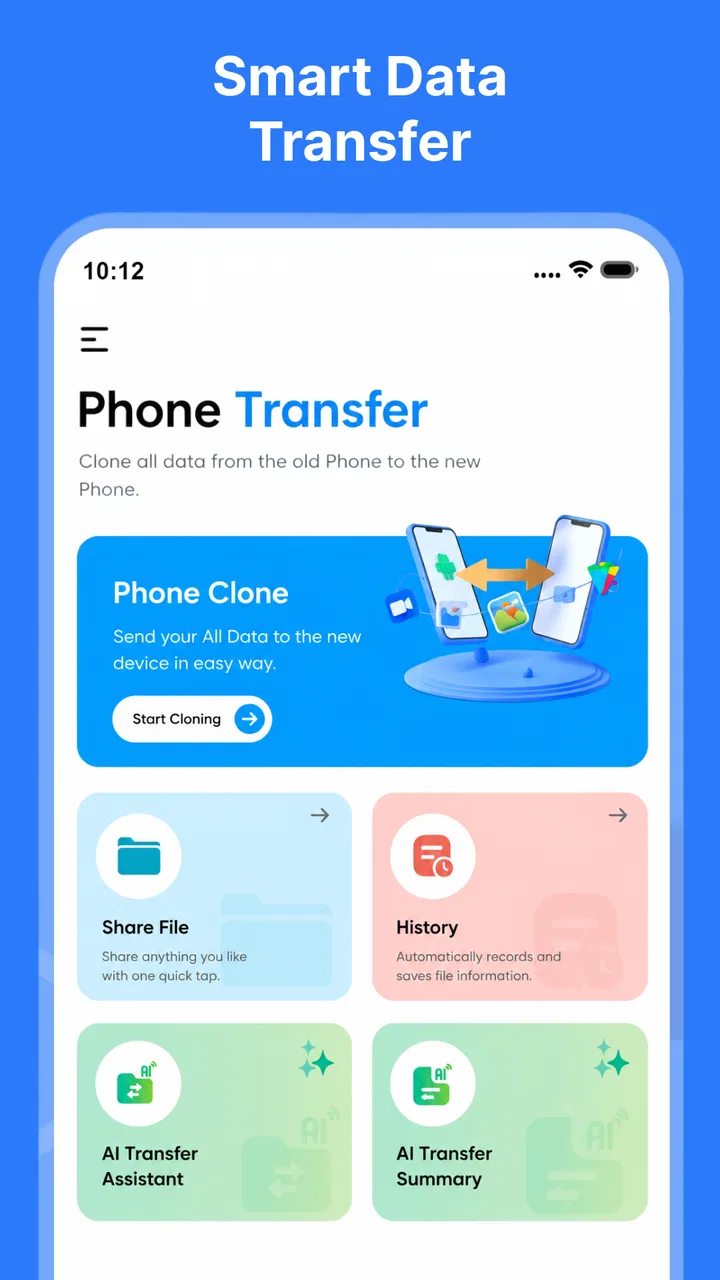
The basic workflow is straightforward: install the app on the phones involved, open it on the source and destination devices, and follow the connection instructions shown on screen. The important handoff happens here. One phone must be recognized as the sender and the other as the receiver, and a rushed tap in the wrong place can make the process feel more complicated than it really is.
I found it helpful to keep both devices physically close and avoid switching between unrelated apps while the connection is being established. If you are helping another person, explain the roles in plain language: the old phone contains the files, and the new phone receives them. That simple distinction prevents a common mistake in which the user begins the process on the wrong device and then wonders why the expected content is not appearing.
Smart Switch App File Transfer is not a replacement for setting up every service on the new phone. Its value is the direct movement of files and selected personal data between phones. Accounts, app logins, cloud libraries and service-specific settings may still need attention in their own applications. I would therefore use this app as one stage of a phone change, not as a magical button that recreates the entire old device.
Choose transfers by purpose, not by habit
Once the phones are connected, I would separate the transfer into sensible groups. Start with contacts if the new phone needs to become usable quickly. Then move important photos and documents, followed by less urgent media. This staged approach gives you an early result and makes troubleshooting easier. If something goes wrong during a large media transfer, you have less guesswork when the content has already been divided into manageable jobs.
A useful, less obvious workflow is to transfer a small test selection first. Choose a few photos from different folders, one video and a document that matters to you. After the test finishes, open them on the receiving phone. This checks more than the connection: it confirms that the destination is behaving as expected and that the file types you care about arrive in a usable form. Only then would I begin the larger transfer.
Another practical tip is to avoid mixing cleanup with migration. Do not rename dozens of folders or delete old files while the transfer is running. Make the source stable, send the material, verify the result and clean up afterward. That order reduces the chance of forgetting what was selected or creating duplicate work when a transfer needs to be repeated.
Handle the handoff with patience
The handoff between phones is where most of the real-world friction appears. People often start a migration while standing in a shop, sitting in a car or trying to finish quickly before leaving home. That is exactly when interruptions, low battery and accidental navigation become likely. I would do the transfer in a quiet place, keep both screens available and avoid treating the progress display as permission to walk away immediately.
If you are moving someone else’s phone, ask them to identify sensitive folders before you begin. Personal photos, scanned documents and downloaded files can sit beside ordinary clutter. A careful selection is better than blindly copying everything, especially when the destination phone will be shared with a child or used for work. The app makes the file movement more convenient; the responsibility for selecting private material remains with the person using it.
For a family handoff, I would also label the phones mentally or physically before starting. When two similar devices are on the same table, it is surprisingly easy to forget which one is supposed to send and which one is supposed to receive. This is not a glamorous feature tip, but it is the kind of small preparation that keeps a simple transfer from becoming a reset-and-repeat exercise.
What the completed result looks like
The best outcome is not merely seeing a completion message. It is being able to continue the day on the new phone without repeatedly returning to the old one. I would check the contacts list, open a sample of recent and older photos, play a transferred video, inspect important documents and browse the folders that were selected. If those checks pass, the app has done its central job well: it has shortened the distance between owning a new phone and actually using it.
This is where the app compares favorably with manual alternatives. Sending files one by one through messaging apps is slow and can create compressed copies. Moving everything through a computer adds another device, another cable or connection step, and another place where files can be misplaced. Cloud storage is convenient when your library is already organized there, but it may require uploading first and downloading again, which is less attractive for a large local collection or a weak connection. A direct phone-to-phone workflow feels more natural when the old device is still available and the goal is a one-time migration.
At the same time, I would not choose this app for every kind of move. If your information already lives neatly in cloud services, the official migration tools built into your phone ecosystem may handle accounts and settings more completely. If you need a long-term backup strategy, a file-transfer utility is not the same thing as a backup system. And if you are moving between platforms with very different app ecosystems, you should expect to configure applications separately even after your files arrive.
Where the workflow can break
The first weak point is expectation. The phrase “phone clone” can make people imagine that every detail of the old phone will reappear exactly as before. In practice, the useful strength here is moving files and data between devices, not reproducing every account session, application state or system preference. Anyone who expects a complete duplicate may be disappointed, while someone who needs photos, documents and contacts moved efficiently is more likely to appreciate the app.
The second weak point is selection. Large photo and video collections can be difficult to review, and it is easy to choose too much or too little. I would not begin with the entire camera folder unless I had already checked the destination’s available space and accepted that the process could take time. A smaller, deliberate batch is easier to verify and repeat. This is also why the test transfer matters: it gives you confidence before the job becomes large.
The third concern is the purchase boundary. The app is free, but in-app purchases are listed at $14.99 per item. I would look carefully at any screen that presents an upgrade and decide whether the free workflow meets my needs before paying. The presence of a purchase option does not make the app unsuitable, but it does mean that “free” should be understood as free to install rather than an assurance that every possible function has no cost.
There is also a human limitation that no transfer tool removes: verification takes time. A person who wipes the old phone immediately after seeing a successful-looking result is taking an unnecessary risk. I would keep the source phone available until the new device has passed the checks that matter to me. That includes opening files, confirming contacts and locating anything needed for work, travel or family communication.
Who will get the most from it
I think Smart Switch App File Transfer is a good fit for someone changing phones who wants a focused way to move local files without learning a complicated desktop backup process. It is also useful when helping a parent, partner or friend, because the sender-and-receiver model is easier to explain than a chain of exports, cables and cloud folders. Its productivity category makes sense: the app is less about entertainment and more about reducing the practical work involved in a device change.
It is especially suitable for a person whose important material is stored directly on the old phone. A photographer with a carefully selected set of images, a student carrying documents between devices, or a family member replacing an aging phone can all benefit from a direct handoff. The strongest use case is a planned move where both phones are available, charged and close together.
I would suggest skipping it, or at least using it only as one part of the process, if your priority is restoring app accounts, messages, system settings and cloud-based services as a single package. In that situation, the migration option supplied by the phone manufacturer or the account ecosystem may be the better first choice. I would also avoid relying on it as the only copy of valuable information. Transfer and backup solve different problems, and confusing them can leave you exposed if the source phone fails.
My practical verdict after the complete workflow
CoddeX Studio has made a focused tool for a familiar problem: getting personal files from one phone to another without forcing the user through a computer-based routine. I like the directness of that purpose, and I found the app most convincing when used in stages: prepare the source, connect both phones, test a small batch, send the important groups, then verify the result before retiring the old device.
Its limitations are just as important as its convenience. It should not be treated as a complete phone-image replacement, and the listed in-app purchases mean you should pay attention to what is included in the free experience. The process also rewards patience; selecting everything at once and walking away is less reliable than a controlled transfer with a final inspection.
With more than one hundred thousand installs, Smart Switch App File Transfer has found an audience for this specific task. My recommendation is simple: use it when your starting point is an old phone full of local files and your desired outcome is a cleaner, faster handoff to a new one. Keep the old device until the new one has been checked, and treat the app as a transfer tool rather than a complete backup or account migration service. Used with that expectation, it can remove a genuinely annoying part of changing phones.
FAQs for Smart Switch App File Transfer
01What is Smart Switch App File Transfer used for?
Smart Switch App File Transfer is designed to help users move files between compatible devices, such as smartphones, tablets, and computers. Depending on the version and platform, it may support photos, videos, contacts, documents, music, and other personal data. It is especially useful when setting up a new phone or creating a copy of important content.
02Is Smart Switch App File Transfer compatible with Android and iPhone?
Compatibility depends on the specific Smart Switch app version and the devices involved. Samsung Smart Switch is primarily intended for transferring data to Samsung Galaxy devices, while support for sending data from an iPhone may be available through cable, wireless connection, or cloud services. Before downloading, check the official store listing for supported operating systems and device models.
03Does Smart Switch App File Transfer require an internet connection?
An active internet connection is not always required for a direct device-to-device transfer. Many transfers can be completed through Wi-Fi Direct, a USB cable, or an adapter, which can be faster and more private than uploading files online. However, downloading the application, checking for updates, restoring cloud backups, or transferring certain account data may require internet access.
04Will Smart Switch App File Transfer move all of my apps and personal data?
The application can transfer many types of personal content, including contacts, messages, photos, videos, calendars, call logs, and selected settings. However, not every app or file can be copied automatically. Some applications require a fresh download, and protected data, banking credentials, passwords, DRM media, or content stored in unsupported services may need to be restored manually after the transfer.
05Is Smart Switch App File Transfer safe to use, and what should I do before transferring data?
Smart Switch App File Transfer is generally safe when downloaded from the official Google Play Store, Apple App Store, or Samsung source. Before starting, update both devices, charge their batteries, use a reliable cable or stable wireless connection, and create a backup of especially important files. Do not erase the old device until you have checked that the transferred data opens correctly.
Pros
- Transfers contacts
- photos
- videos
- and files between devices
- Supports Android-to-Android and iPhone-to-Android migration
- Wireless transfers avoid cables and extra hardware
- Simple guided setup makes moving data easy for beginners
- Can help preserve important data when upgrading phones
Cons
- Transfer speed depends heavily on Wi-Fi quality and file size
- Some app data and account logins may not transfer completely
- Requires sufficient free storage on the receiving device
- Compatibility varies by phone brand
- model
- and operating system
- Large transfers can drain battery on both devices

Smart Switch App File Transfer
Gallery